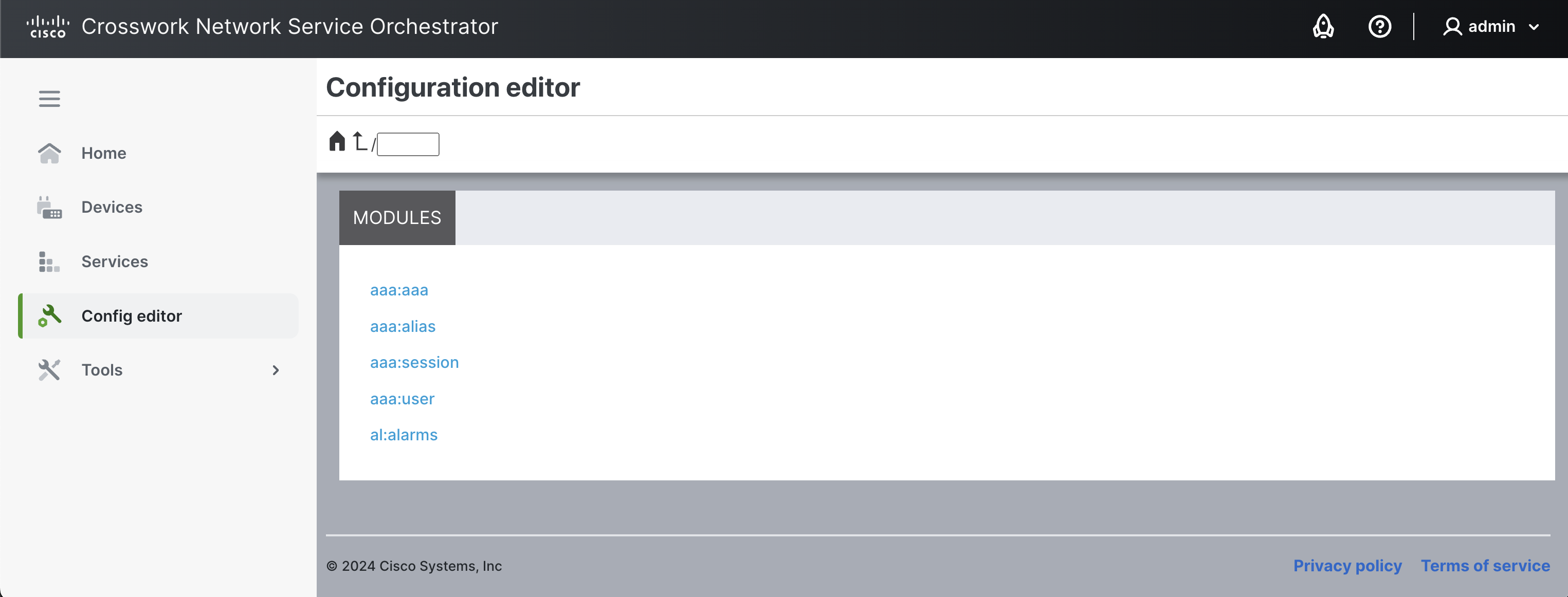
Configuration Editor View
Configuration Editor View

Configuration Navigator
 button.
* Click the up arrow
button.
* Click the up arrow  to go back one step to the parent node.
* To fetch information about a property/component, click the info
to go back one step to the parent node.
* To fetch information about a property/component, click the info  button.
* Use the **TAB** key to complete the config path.
## Configuration Editor Tabs
When accessing an item (e.g., a device, service, etc.) using the Configuration Editor, the following tabs are visible:
* **Edit Config** tab, to configure the item's configuration.
* **Config** tab, to view configured items.
* **Operdata** tab, to view the operational data relevant to the item (e.g., last sync time, last modified time, etc).
* **Actions** tab, to apply an action to the item with specified options/parameters.
Depending on the selection of the tabs mentioned above, you may see four additional tabs in the **Configuration editor** view:
* **Widgets** tab, to view the data defined by YANG modules in different formats.
* **None** tab.
* **Containers** tab, to view container-specific information from the YANG model.
* **List** tab, to view list-specific information from the YANG model.
---
# Agent Instructions
This documentation is published with GitBook. GitBook is the documentation platform designed so that both humans and AI agents can read, navigate, and reason over technical content effectively. Learn more at gitbook.com.
## Querying This Documentation
If you need additional information that is not directly available in this page, you can query the documentation by asking a question.
Perform an HTTP GET request on the following URL with the `ask` and `goal` query parameters:
```
GET https://nso-docs.cisco.com/guides/nso-6.3/operation-and-usage/webui/config-editor.md?ask=
button.
* Use the **TAB** key to complete the config path.
## Configuration Editor Tabs
When accessing an item (e.g., a device, service, etc.) using the Configuration Editor, the following tabs are visible:
* **Edit Config** tab, to configure the item's configuration.
* **Config** tab, to view configured items.
* **Operdata** tab, to view the operational data relevant to the item (e.g., last sync time, last modified time, etc).
* **Actions** tab, to apply an action to the item with specified options/parameters.
Depending on the selection of the tabs mentioned above, you may see four additional tabs in the **Configuration editor** view:
* **Widgets** tab, to view the data defined by YANG modules in different formats.
* **None** tab.
* **Containers** tab, to view container-specific information from the YANG model.
* **List** tab, to view list-specific information from the YANG model.
---
# Agent Instructions
This documentation is published with GitBook. GitBook is the documentation platform designed so that both humans and AI agents can read, navigate, and reason over technical content effectively. Learn more at gitbook.com.
## Querying This Documentation
If you need additional information that is not directly available in this page, you can query the documentation by asking a question.
Perform an HTTP GET request on the following URL with the `ask` and `goal` query parameters:
```
GET https://nso-docs.cisco.com/guides/nso-6.3/operation-and-usage/webui/config-editor.md?ask=