> For the complete documentation index, see [llms.txt](https://nso-docs.cisco.com/llms.txt). Markdown versions of documentation pages are available by appending `.md` to page URLs; this page is available as [Markdown](https://nso-docs.cisco.com/resources/platform-tools/readme.md).
# Observability Exporter
Export observability data to InfluxDB.
The NSO Observability Exporter (OE) package allows Cisco NSO to export observability-related data using software-industry-standard formats and protocols, such as the OpenTelemetry protocol (OTLP). It supports the export of progress traces using OTLP, as well as the export of transaction metrics based on the progress trace data into an InfluxDB database.
## Observability Data Types
To provide insight into the state and working of a system, operators make use of different types of data:
* **Logs**: Information about events taking place in the system, usually for humans to interpret.
* **Traces**: Detailed information about the requests as they traverse the system.
* **Metrics**: Measures of quantifiable aspects of the system for statistical analysis, such as the amount of successful and failed requests.
Each of the data types serves a different purpose. Metrics allow you to get a high-level view of whether the system behaves in an expected manner, for example, no or few failed requests. Metrics also help identify the load on the system (i.e. CPU usage, number of concurrent requests, etc.) but they do not inform you what is happening with a particular request or transaction, for example, the one that is failing.
Tracing, on the other hand, shows the path and the time that the request took in different parts of the overall system. Perhaps the request failed because one of the subsystems took too long to provide the necessary data. That's the kind of information a trace gives you.
However, to understand what took a specific subsystem a long time to respond, you need to consult the relevant logs.
As these are different types of data, different software solutions exist to process, store, and examine them.
For tracing, the package exports progress trace data using the standard OTLP format. Each trace carries a `trace-id` that uniquely identifies it and can be supplied as part of the request (see the [Progress Trace](https://nso-docs.cisco.com/guides/development/advanced-development/progress-trace) section in the NSO Development Guide for details), allowing you to find the relevant data in a busy system. Tools such as Jaeger or Grafana (with Grafana Tempo) can then ingest the OTLP data and present it in a graphical way for further analysis.
The Observability Exporter package also performs additional processing of the tracing data and exports the calculated metrics to an InfluxDB time-series database. Using Grafana or a similar tool, you can extract and accumulate the relevant values to produce customized dashboards, for example, showing the average transaction length for each type of service in NSO.
The package exports four different types of metrics, called measurements, to InfluxDB:
* `span`: Data for individual parts of the transaction, also called spans.
* `span-count`: Number of concurrent spans, for example, how many transactions are in the prepare phase (prepare span) at the same time.
* `transaction`: Sum of span durations per transaction, for example, the cumulative time spent in creating code when a transaction configures multiple services.
* `transaction-lock`: Details about transaction lock, such as queue length when acquiring or releasing the lock.
## Installation
To install the Observability Exporter add-on, follow the steps below:
1. Install the prerequisite Python packages: `parsedatetime`, `opentelemetry-exporter-otlp`, and `influxdb`. To install the packages, run the command `pip install -r src/requirements.txt` from the package folder.
2. Add the Observability Exporter package in a manner suitable for your NSO installation. This usually entails copying the package file to the appropriate `packages/` folder and performing a package reload. For more information, refer to the NSO product documentation on package management.
## Configure Data Export
Observability Exporter configuration resides under the `progress export` container in NSO. All export functions can be enabled or disabled through the top-level `enabled` leaf.
To configure exporting tracing data, use the `otlp` container. This is a presence container that controls whether export is enabled or not. In the container, you can define the target host and port for sending data, as well as the transport used. Unless configured otherwise, the data is exported to the localhost using the default OTLP port, so there is minimal configuration required if you run the collector locally, for example, on the same system or as a sidecar in a container deployment.
The InfluxDB export is configured and enabled using the `influxdb` presence container, where you set the host to export metrics to. You can also customize the port number, username, password, and database name used for the connection.
Under the `progress export` you can also configure `extra-tags`, the additional tag name-value pairs that the system adds to the measurements. These are currently only used for InfluxDB.
The following is a sample configuration snippet using different syntax styles:
{% tabs %}
{% tab title="C-Style" %}
```nso
progress export enabled
progress export influxdb host localhost
progress export influxdb username nso
progress export influxdb password ...
progress export influxdb database nso
progress export otlp host localhost
progress export otlp transport http
```
{% endtab %}
{% tab title="J-Style" %}
```nso
progress {
export {
enabled;
influxdb {
host localhost;
username nso;
password ...;
database nso;
}
otlp {
host localhost;
transport http;
}
}
}
```
{% endtab %}
{% endtabs %}
## Using InfluxDB 2.x
Note that the current version of the Observability Exporter uses InfluxDB v1 API. If you run an InfluxDB 2.x database instance, you need to enable v1 API client access with the `influx v1 auth create` command or a similar mechanism. Refer to [Influxdata docs](https://docs.influxdata.com/influxdb/v2/api-guide/influxdb-1x/) for more information.
## Minimal Tracing Example with Jaeger
This example shows how to use the Jaeger software ([https://www.jaegertracing.io](https://www.jaegertracing.io/)) to visualize the progress traces. It requires you to install Jaeger on the same system as NSO and is therefore only suitable for demo or development purposes.
1. First, make sure that you have a running NSO instance and that you have successfully added the Observability Exporter package. To verify, run the `show packages package observability-exporter` command from the NSO CLI.
2. Download and run a recent Jaeger all-in-one binary from the Jaeger website, using the `--collector.otlp.enabled` switch:
```bash
$ jaeger-all-in-one --collector.otlp.enabled
```
3. Keep Jaeger running, and from another terminal, enter the NSO CLI to enable OTLP data export:
```markup
admin@ncs# unhide debug
admin@ncs# config
admin@ncs(config)# progress export otlp
admin@ncs(config)# commit
```
\
Jaeger should now be receiving the transaction traces. However, if you have no running transactions in the system, there will be no data. So, make sure that you have some traces by performing a trivial configuration change:
```markup
admin@ncs(config)# session idle-timeout 100001
admin@ncs(config)# commit
```
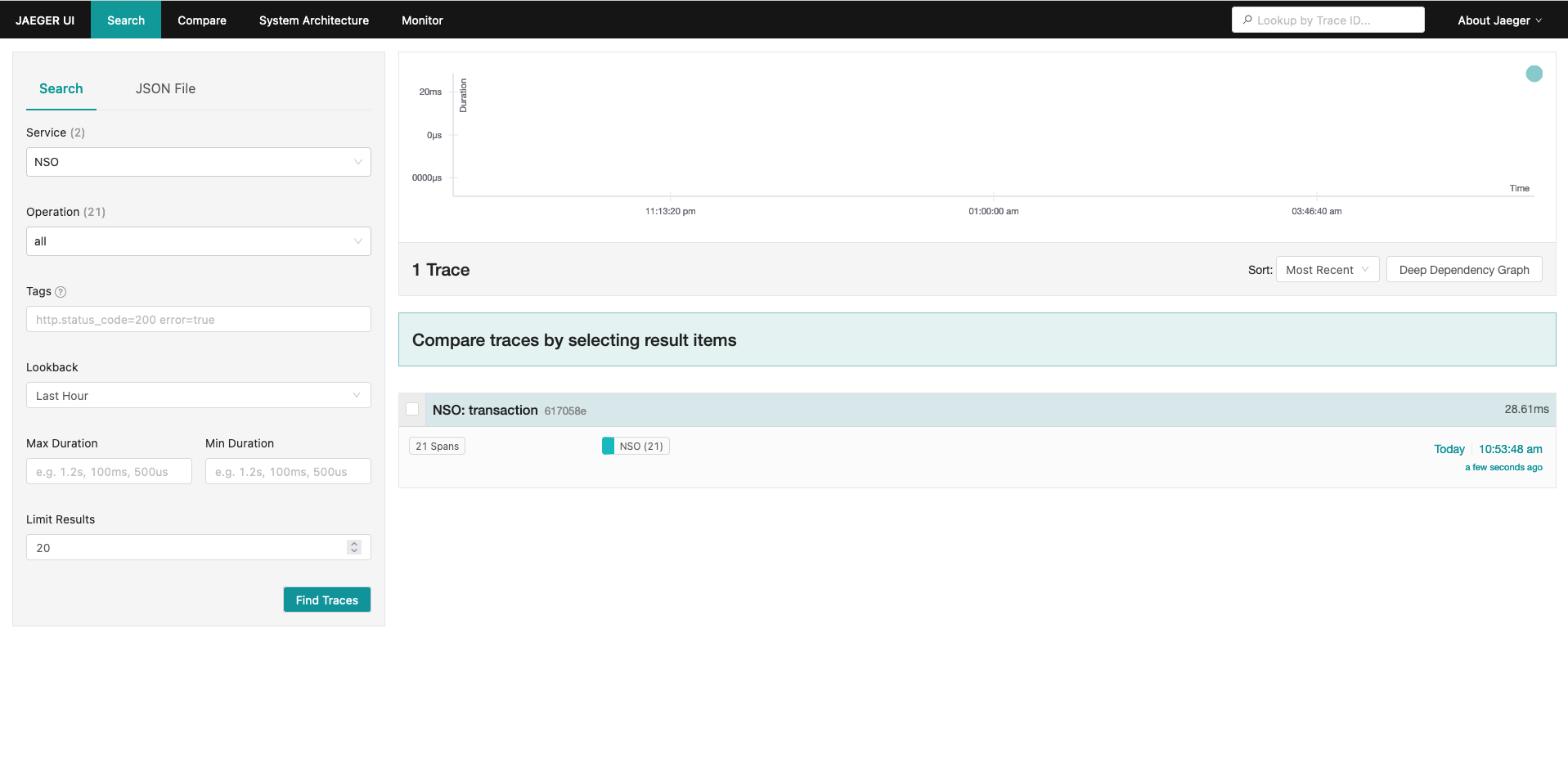
4. Now you can connect to the Jaeger UI at [http://localhost:16686](http://localhost:16686/) to explore the data. In the **Search** pane, select "NSO" service and click **Find Traces**.
Clicking on one of the traces will bring you to the trace view, such as the following one.\\
## Minimal Metrics Example with InfluxDB
This example shows you how to store and do basic processing and visualization of data in InfluxDB. It requires you to install InfluxDB on the same system as NSO and is therefore only suitable for demo or development purposes.
1. First, ensure you have a running NSO instance and have successfully added the Observability Exporter package. To verify, run the `show packages package observability-exporter` command from the NSO CLI.
2. Next, set up an InfluxDB instance. Download and install the InfluxDB 2 binaries and the corresponding influx CLI appropriate for your NSO system. See [Influxdata docs](https://docs.influxdata.com/influxdb/v2/install/) for details, e.g. `brew install influxdb influxdb-cli` on a macOS system.
3. Make sure that you have started the instance, then complete the initial configuration of InfluxDB. During the configuration, create an organization named `my-org` and a bucket named `nso`. Do not forget to perform the Influx CLI setup. To verify that everything works in the end, run:
```bash
$ influx bucket list --org my-org
ID Name Retention Shard group duration Organization ID Schema Type
bc98fe2ae322d349 _monitoring 168h0m0s 24h0m0s b3e7d8ac9213a8fe implicit
dd10e45d802dda29 _tasks 72h0m0s 24h0m0s b3e7d8ac9213a8fe implicit
5d744e55fb178310 nso infinite 168h0m0s b3e7d8ac9213a8fe implicit
```
\
In the output, find the ID of the NSO bucket that you have created. For example, here it is `5d744e55fb178310` but yours will be different.
4. Create a username/password pair for `v1` API access:
```bash
$ influx v1 auth create --org my-org --username nso --password nso123nso --write-bucket BUCKET_ID
```
\
Use the `BUCKET_ID` that you have found in the output of the previous command.
5. Now connect to the NSO CLI and configure the InfluxDB exporter to use this instance:
```bash
admin@ncs# unhide debug
admin@ncs# config
admin@ncs(config)# progress export influxdb
admin@ncs(config)# progress export influxdb host localhost
admin@ncs(config)# progress export influxdb username nso
admin@ncs(config)# progress export influxdb password nso123nso
admin@ncs(config)# commit
```
\
The username and password should match those created with the previous command, while the database name (using the default of `nso` here) should match the bucket name. Make sure that you have some data for export by performing a trivial configuration change:
```bash
admin@ncs(config)# session idle-timeout 100002
admin@ncs(config)# commit
```
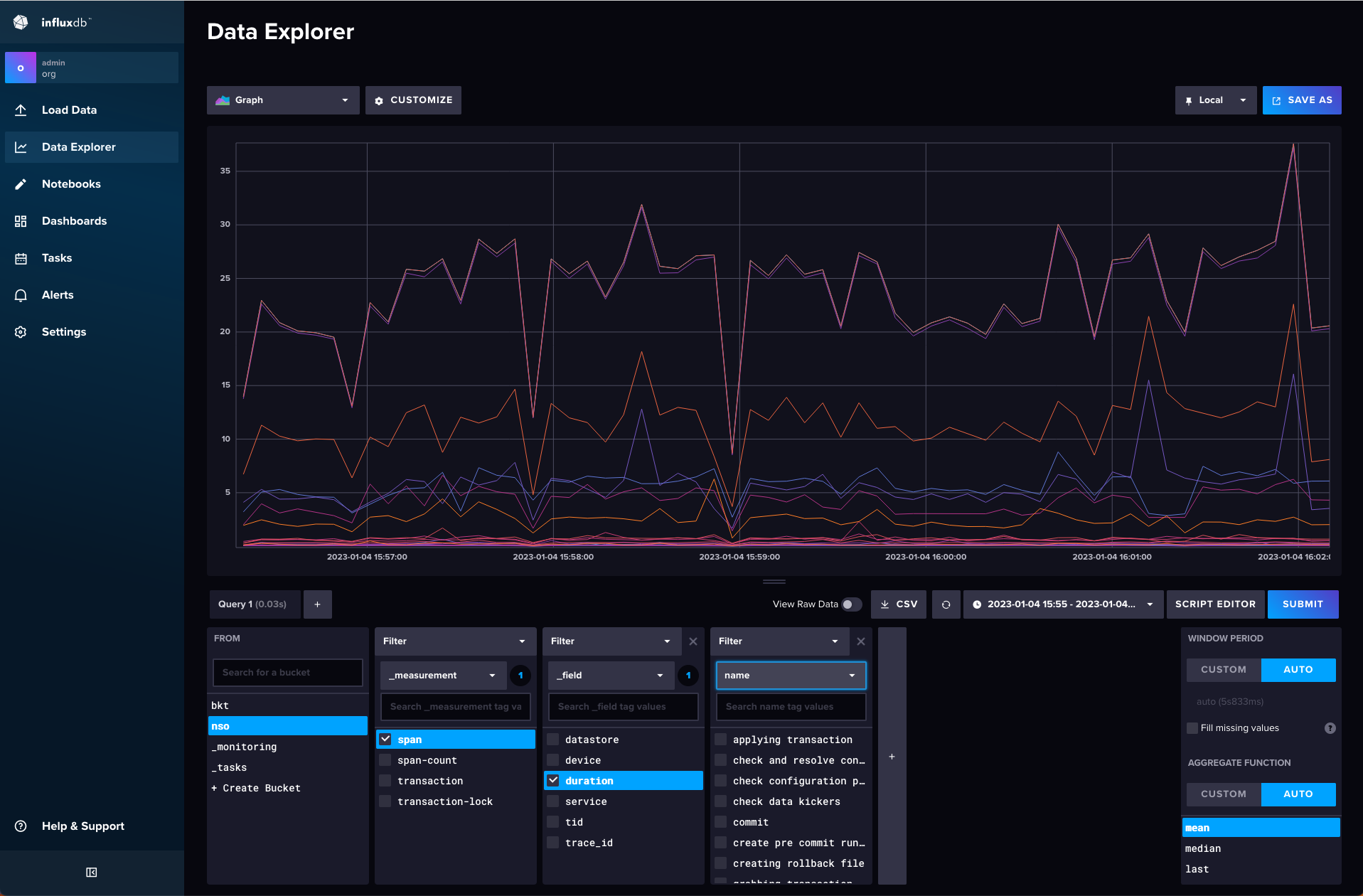
6. Open the InfluxDB UI at [http://localhost:8086](http://localhost:8086/) and log in, then select the **Data Explorer** from the left-hand menu. Using the query builder, you can explore and visualize the data.
\
For example, select the `nso` bucket, `span` measurement, and `duration` as a field filter. Keeping other settings at their default values, it will graph the average (mean) times that various parts of the transaction take. If you wish, you can further configure another filter for `name`, to only show the values for the selected part.
Note that the above image shows data for multiple transactions over a span of time. If there is only a single transaction, the graph will look empty and will instead show a single data point when you hover over it.
## Observability Exporter Integration with Grafana
This example shows integrating the Observability Exporter with Grafana to monitor NSO application performance.
1. First, ensure you have a running NSO instance and have successfully added the Observability Exporter package. To verify, run the `show packages package observability-exporter` command from the NSO CLI.
2. Next, set up an InfluxDB instance. Follow steps 2 to 4 from the [Minimal Metrics Example with InfluxDB](#minimal-metrics-example-with-influxdb).
3. Next, set up a Grafana instance. Refer to [Grafana Docs](https://grafana.com/docs/grafana/latest/setup-grafana/installation/) for installing Grafana on your system. A MacOS example:
1. Install Grafana.
```bash
$ brew install grafana
```
2. Start the Grafana instance.
```bash
$ sudo brew services start grafana
```
4. Configure the Grafana Organization name.
```bash
$ curl -i "http://admin:admin@127.0.0.1:3000/api/orgs/1" \
-m 5 -X PUT --noproxy '*' \
-H 'Content-Type: application/json;charset=UTF-8' \
--data-binary "{\"name\":\"NSO\"}"
```
5. Add InfluxDB as a Data Source in Grafana. Download the file [influxdb-data-source.json](https://pubhub.devnetcloud.com/media/nso/docs/addons/observability-exporter/influxdb-data-source.json) and replace "my-token" with the actual token from the InfluxDB instance in the file and run the below command.
```bash
$ curl -i "http://admin:admin@127.0.0.1:3000/api/datasources" \
-m 5 -X POST --noproxy '*' \
-H 'Content-Type: application/json;charset=UTF-8' \
--data @influxdb-data-source.json
```
6. Set up the NSO example Dashboard. This step requires the JQ command-line tool to be installed first on the system.
```bash
$ brew install jq
```
\
Download the sample NSO dashboard JSON file [dashboard-nso-local.json](https://pubhub.devnetcloud.com/media/nso/docs/addons/observability-exporter/dashboard-nso-local.json) and run the below command. Replace the `"value"` field's value with the actual Jaeger UI URL where `"name"` is `INPUT_JAEGER_BASE_URL` under `"inputs"`.
```bash
$ curl -i "http://admin:admin@127.0.0.1:3000/api/dashboards/import" \
-m 5 -X POST -H "Accept: application/json" --noproxy '*' \
-H 'Content-Type: application/json;charset=UTF-8' \
--data-binary "$(jq '{"dashboard": . , "overwrite": true, "inputs":[{"name":"DS_INFLUXDB","type":"datasource", "pluginId":"influxdb","value":"InfluxDB"},{"name":"INPUT_JAEGER_BASE_URL","type":"constant","value":"http://127.0.0.1:49987/"}]}' dashboard-nso-local.json)"
```
7. (Optional) Set the NSO dashboard as a default dashboard in Grafana.
```bash
$ curl -i 'http://admin:admin@127.0.0.1:3000/api/org/preferences' \
-m 5 -X PUT --noproxy '*' \
-H 'X-Grafana-Org-Id: 1' \
-H 'Content-Type: application/json;charset=UTF-8' \
--data-binary "{\"homeDashboardId\":`curl -m 5 --noproxy '*' 'http://admin:admin@127.0.0.1:3000/api/dashboards/uid/nso' 2>/dev/null | jq .dashboard.id`}"
```
8. Connect to the NSO CLI and configure the InfluxDB exporter:
```markup
admin@ncs# unhide debug
admin@ncs# config
admin@ncs(config)# progress export influxdb
admin@ncs(config)# progress export influxdb host 127.0.0.1
admin@ncs(config)# progress export influxdb port 8086
admin@ncs(config)# progress export influxdb username nso
admin@ncs(config)# progress export influxdb password nso123nso
admin@ncs(config)# commit
```
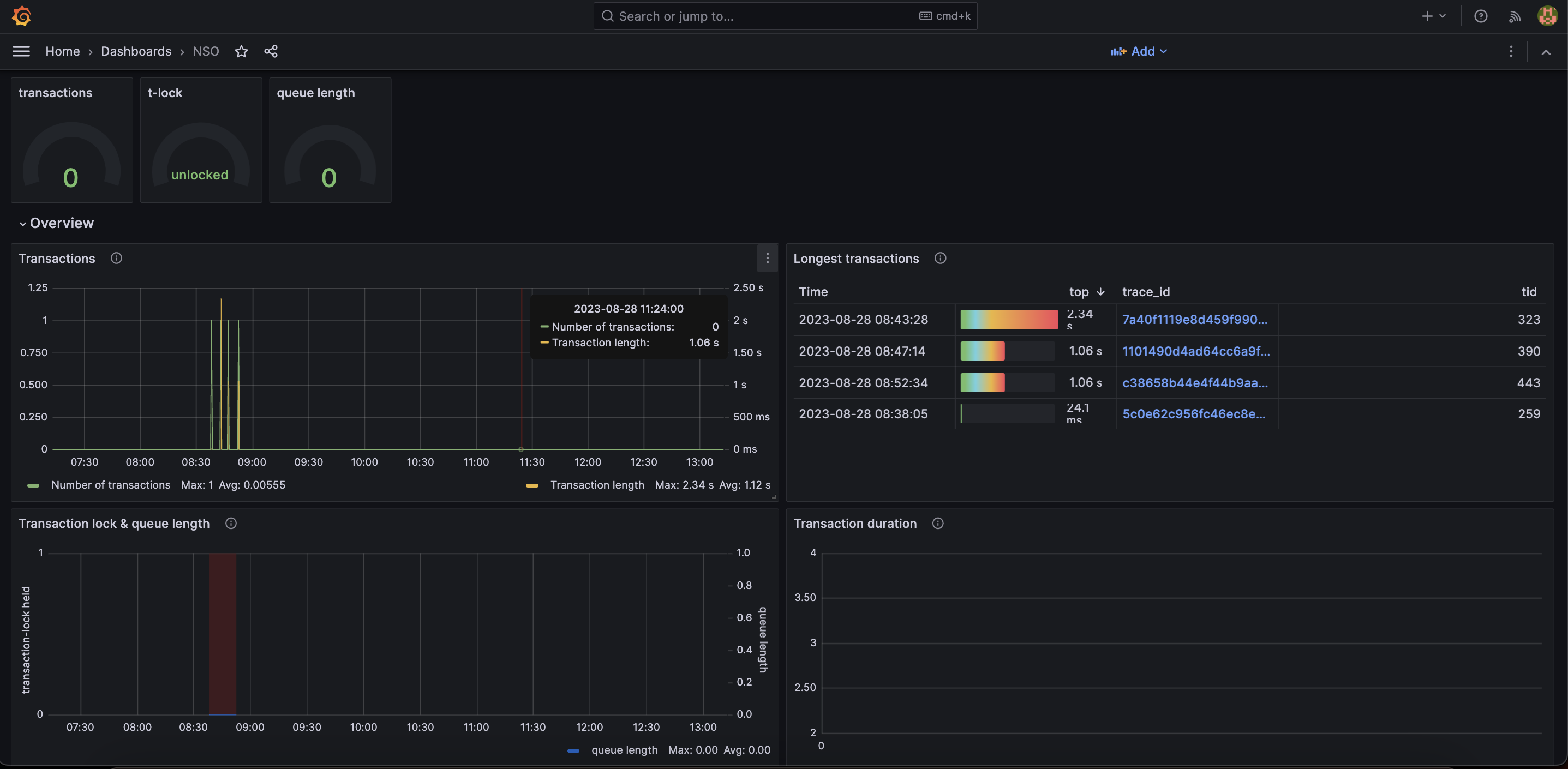
9. To perform a few trivial configuration changes, open the Grafana UI at and log in with username `admin` and password `admin`. Setting the NSO dashboard as a default dashboard will show different charts and graphs showing NSO metrics.
\
Below are the panels showing metrics related to the transactions, such as transaction throughput, longest transactions, transaction locks held, and queue length.
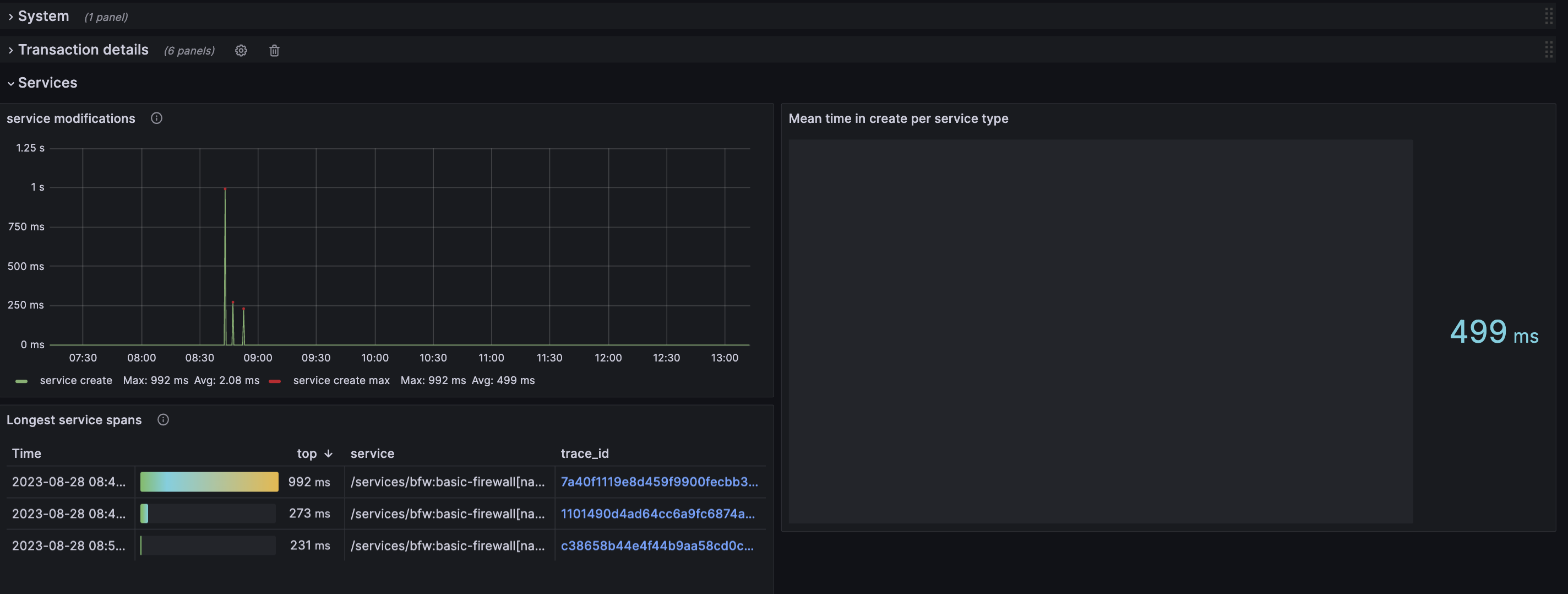
Below are the panels showing metrics related to the services, such as mean/max duration for `create service`, mean duration for `run service`, and the service's longest spans.
\
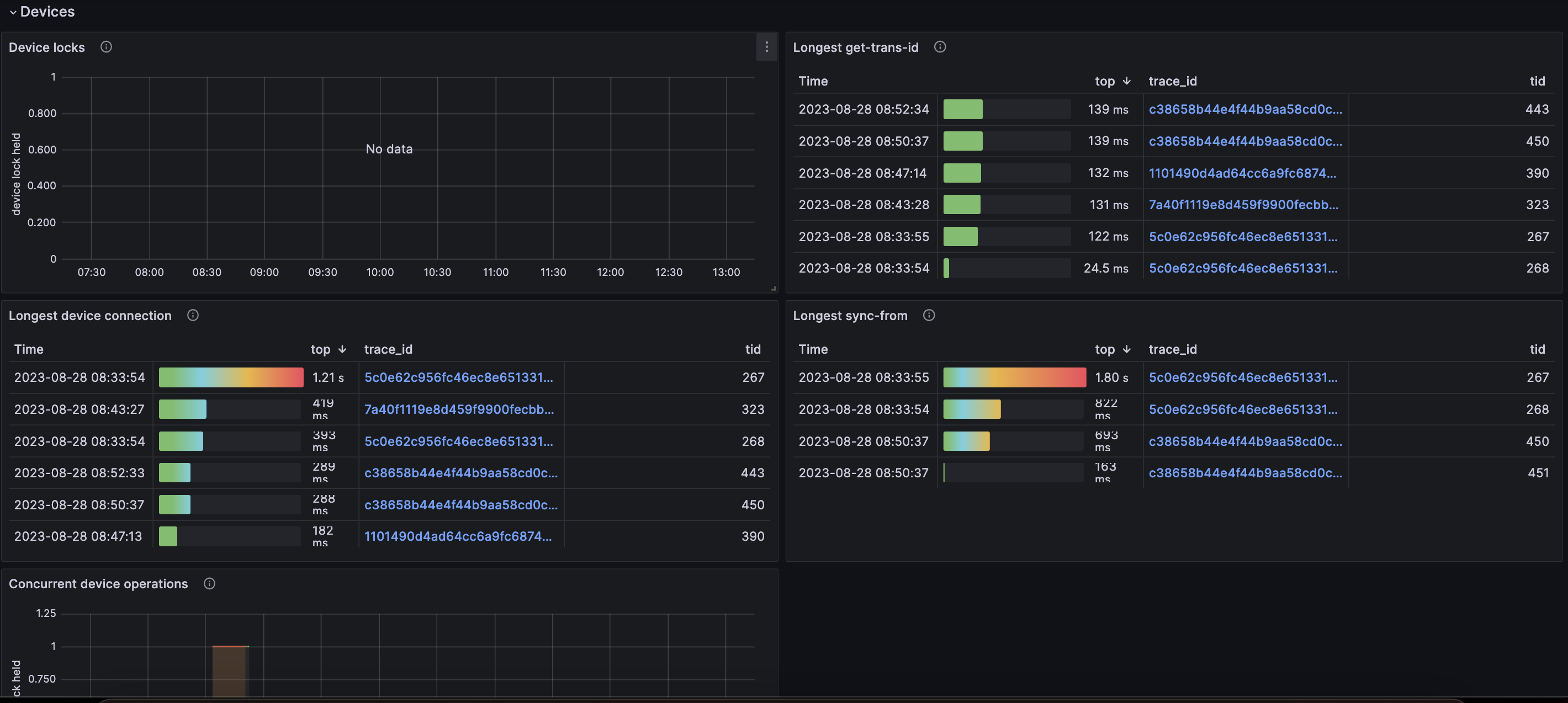
Below are the panels showing metrics related to the devices, such as device locks held, longest device connection, longest device sync-from, and concurrent device operations.
## Observability Exporter Docker multi-container setup example
All previously mentioned databases and virtualization software can also be brought up in a Docker environment with Docker volumes, making it possible to persist the metric data in the data stores after shutting down the Docker containers.
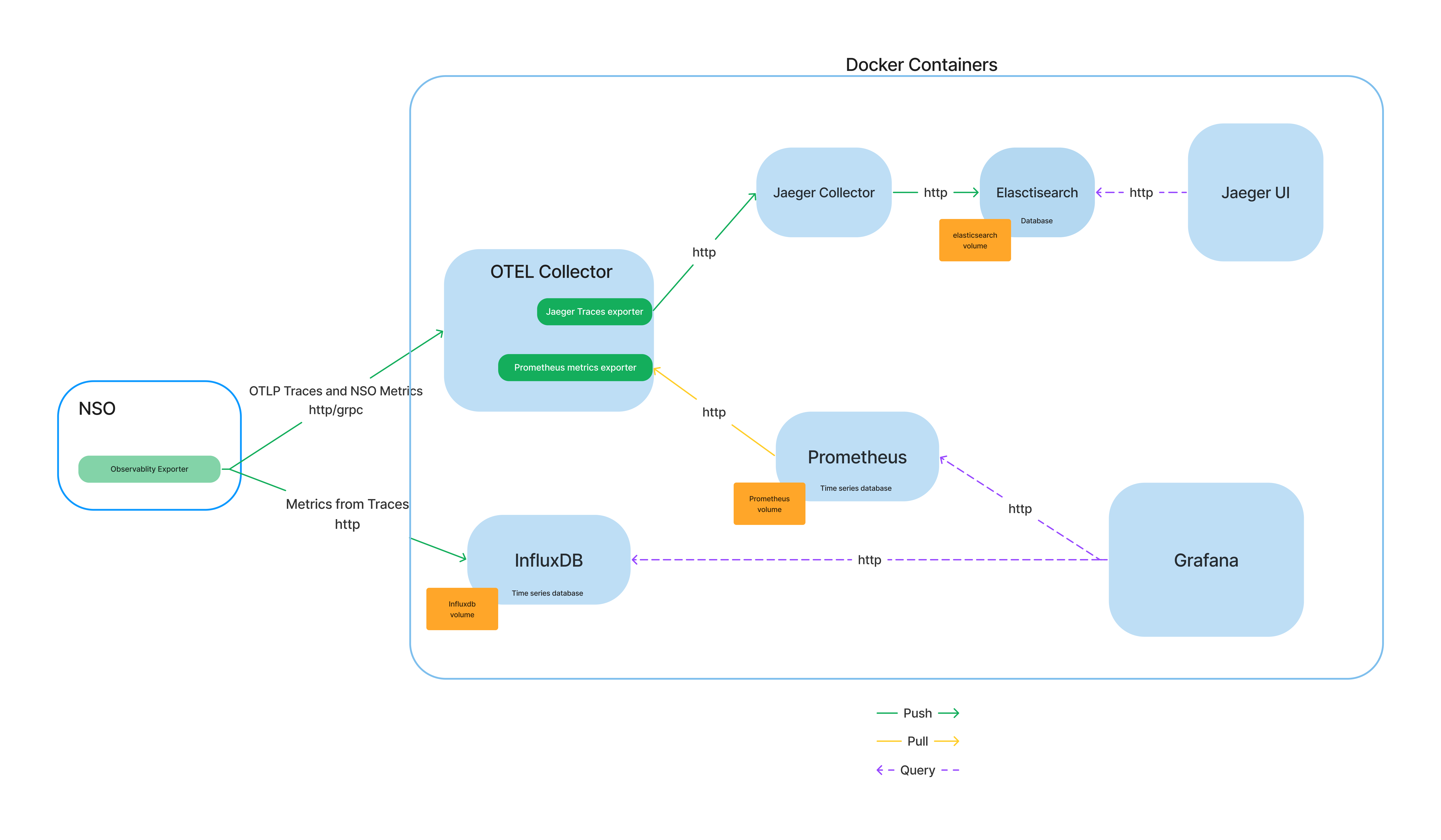
To facilitate bringing up the containers and the interconnectivity of databases and virtualization containers, a setup bash script called `setup.sh` is provided together with a `compose.yaml` file that describes all Docker containers to create and start, as well as configuration files to configure each container.
This diagram shows an overview of the containers that Compose creates and starts and how they are connected.
To create the Docker environment described above, follow these steps:
1. Make sure Docker and Docker Compose are installed on your machine. Refer to the Docker documentation on installing Docker for your respective OS. You can verify that Docker and Compose are installed by executing the following commands in a terminal and getting a version number as output:
* `docker`
```bash
$ docker version
```
* `docker compose`
```bash
$ docker compose version
```
2. Download the NSO Observability Exporter package from CCO, untar it, and `cd` into the `setup` folder:
```bash
$ sh ncs-6.2-observability-exporter-1.2.0.signed.bin
$ tar -xzf ncs-6.2-observability-exporter-1.2.0.tar.gz
$ cd observability-exporter/setup
```
3. Make the `setup.sh` script executable:
```bash
$ chmod u+x setup.sh
```
4. Run the `setup.sh` script without arguments to use the default ports for containers and the default username and password for InfluxDB or supply arguments to set a specific port for each container:
* Use the default values defined in the script.
```bash
$ ./setup.sh
```
* Provide port values and InfluxDB configuration.
```bash
$ ./setup.sh --otelcol-grpc 12344 --otelcol-http 12345 --jaeger 12346 --influxdb 12347 --influxdb-user admin --influxdb-password admin123 --influxdb-token my-token --prometheus 12348 --grafana 12349
```
* To run secure protocol configuration, whether it's HTTP or gRPC, utilize the provided setup script with the appropriate security settings. Ensure the necessary security certificates and keys are available. For HTTPS and gRPC Secure, a TLS certificate and private key files are necessary. For instructions on creating self-signed certificates, refer to [Creating Self-Signed Certificate](#creating-self-signed-certificate).
```bash
$./setup.sh --otelcol-cert-path /path/to/certificate.crt --otelcol-key-path /path/to/privatekey.key
```
* The script will output NSO configuration to configure the Observability Exporter and URLs to visit the dashboards of some of the containers.
```markup
NSO configuration:
Visit the following URLs in your web browser to reach respective systems:
Jaeger : http://127.0.0.1:12346
Grafana : http://127.0.0.1:12349
Prometheus : http://127.0.0.1:12348
```
* You can run the `setup.sh` script with the `--help` flag to print help information about the script and see the default values used for each flag.
```bash
$ ./setup.sh --help
```
* Enable HTTPS to enable OTLP through HTTPS, root certificate authority (CA) certificate file in PEM format needs to be specified in NSO configuration for both traces and metrics.
```markup
```
5. After configuring the Observability Exporter with the NSO configuration printed by the `setup.sh` script, e.g., using the CLI `load` command or the `ncs_load` tool, traces, and metric data should be seen in Jaeger, InfluxDB, and Grafana as shown in the previous setup.
6. The setup can be brought down with the following commands:
* Bring down containers only.
```bash
$ ./setup.sh --down
```
* Bring down containers and remove volumes.
```bash
$ ./setup.sh --down --remove-volumes
```
## Creating Self-Signed Certificate
Prerequisites: OpenSSL: Ensure that OpenSSL is installed on your system. Most Unix-like systems come with OpenSSL pre-installed.
Generate a Private Key: First, generate a private key using OpenSSL. Run the following command in your terminal or command prompt:
1. Install OpenSSL:
```shell
$sudo apt-get install openssl
```
2. Create a Root CA (Certificate Authority):
```shell
$openssl genrsa -out rootCA.key 2048
$openssl req -x509 -new -nodes -key rootCA.key -sha256 -days 3650 -out rootCA.pem
```
3. Generate SSL Certificates Signed by the Root CA:
{% tabs %}
{% tab title="Shell" %}
```bash
$openssl genrsa -out server.key 2048
$openssl req -new -key server.key -out server.csr
$openssl x509 -req -in server.csr -CA rootCA.pem -CAkey rootCA.key -CAcreateserial -out server.crt -days 365 -sha256
```
{% endtab %}
{% tab title="Code Snippet - 1" %}
```
- server.key: Private key for the server.
- server.csr: Certificate Signing Request (CSR) for the server.
- server.crt: SSL certificate for the server, signed by the root CA.
```
{% endtab %}
{% endtabs %}
4. Use the Certificates:
```markup
Now, server.key and server.crt can be used in the server configuration.
Ensure that rootCA.pem is added to the trust store of clients that need to verify the server's certificate.
```
## Export NSO Traces and Metrics to Splunk Observability Cloud
In the previous test environment setup, we exported traces to Jaeger and metrics to Prometheus but progress-trace and metrics can also be sent to [Splunk Observability Cloud](https://docs.splunk.com/observability/en/get-started/welcome.html).
In order to send traces and metrics to Splunk Observability Cloud, either the [OpenTelemetry Collector Contrib](https://github.com/open-telemetry/opentelemetry-collector-contrib) or [Splunk OpenTelemetry Collector](https://github.com/signalfx/splunk-otel-collector) can be used.
Here is an example config that can be used with the OpenTelemetry Collector Contrib to send traces and metrics:
```yaml
exporters:
sapm:
access_token:
access_token_passthrough: true
endpoint: https://ingest..signalfx.com/v2/trace
max_connections: 10
num_workers: 5
signalfx:
access_token:
access_token_passthrough: true
realm:
timeout: 5s
max_idle_conns: 10
service:
pipelines:
traces:
exporters: [sapm]
metrics:
exporters: [signalfx]
```
An access token and the endpoint of your Splunk Observability Cloud instance are needed to start exporting traces and metrics. The access token can be found under the `settings -> Access Tokens` menu in your Splunk Observability Cloud dashboard. The endpoint can be constructed by looking at your Splunk Observability Cloud URL and replacing `` with the one you see in the URL. e.g. .
Traces can be accessed at and Metrics are available when accessing or creating a dashboard at .
More options for the `sapm` and `signalfx` exporters can be found at and respectively.
In the current Observability Exporter version, metrics from spans, that is metrics that are currently sent directly to InfluxDB, cannot be sent to Splunk.
## Export NSO Traces and Metrics to Splunk Enterprise
1. Download Splunk Enterprise. Visit the [Splunk Enterprise](https://www.splunk.com/en_us/download/splunk-enterprise.html). Select the appropriate version for your operating system (Linux, Windows, macOS). Download the installer package.
2. Install Splunk Enterprise.
* On Linux:
* Transfer the downloaded `.rpm` or `.deb` file to your Linux server.
* Install the package:
* For RPM-based distributions (RedHat/CentOS):
```bash
sudo rpm -i splunk--linux-2.6-x86_64.rpm
```
* For DEB-based distributions (Debian/Ubuntu):
```bash
sudo dpkg -i splunk--linux-2.6-amd64.deb
```
* On Windows:
* Run the downloaded `.msi` installer.
* Follow the prompts to complete the installation.
3. Start Splunk.
* On Linux:
```bash
sudo /opt/splunk/bin/splunk start --accept-license
```
* On Windows:
* Open the Splunk Enterprise application from the Start Menu.
4. Access Splunk Web Interface.
Navigate to http\://:8000. Log in with the default credentials (admin/changeme).
5. Create an Index via the Splunk Web Interface:
* Click on **Settings** in the top-right corner.
* Under the **Data** section, click on **Indexes**.
* Create a **New Index**:
* Click on the **New Index** button.
* Fill in the required details:
* **Index Name**: Enter a name for your index (e.g., nso\_traces, nso\_metrics).
* **Index Data Type**: Select the type of data (e.g., Events or Metrics).
* **Home Path**, **Cold Path**, and **Thawed Path**: Leave these as default unless you have specific requirements.
* Click on the **Save** button.
6. Enable HTTP Event Collector (HEC) on Splunk Enterprise. Before you can use Event Collector to receive events through HTTP, you must enable it. For Splunk Enterprise, enable HEC through the **Global Settings** dialog box.
* Click **Settings** > **Data Inputs**.
* Click **HTTP Event Collector**.
* Click **Global Settings**.
* In the **All Tokens** toggle button, select **Enabled**.
* Choose a **nso\_traces/nso\_metrics** for their respective HEC tokens.
* Click **Save**.
7. Create an Event Collector token on Splunk Enterprise. To use HEC, you must configure at least one token.
* Click **Settings** > **Add Data**.
* Click **monitor**.
* Click **HTTP Event Collector**.
* In the **Name** field, enter a name for the token.
* Click **Next**.
* Click **Review**.
* Confirm that all settings for the endpoint are correct, click **Submit**. Otherwise, click **<** to make changes.
8. Configure the OpenTelemetry Protocol (OTLP) Collector:
* Create or edit the `otelcol.yaml` file to include the HEC configuration. Example configuration:
```yaml
exporters:
splunk_hec/traces:
token: ""
endpoint: "http://:8088/services/collector"
index: "nso_traces"
tls:
insecure_skip_verify: true
splunk_hec/metrics:
token: ""
endpoint: "http://:8088/services/collector"
index: "nso_metrics"
tls:
insecure_skip_verify: true
service:
pipelines:
traces:
exporters: [splunk_hec/traces]
metrics:
exporters: [splunk_hec/metrics]
```
9. Save the configuration file.
## Support
For additional support questions, refer to [Cisco Support](https://www.cisco.com/go/support/).
---
# Agent Instructions
This documentation is published with GitBook. GitBook is the documentation platform designed so that both humans and AI agents can read, navigate, and reason over technical content effectively. Learn more at gitbook.com.
## Querying This Documentation
If you need additional information that is not directly available in this page, you can query the documentation by asking a question.
Perform an HTTP GET request on the following URL with the `ask` and `goal` query parameters:
```
GET https://nso-docs.cisco.com/resources/platform-tools/readme.md?ask=&goal=
```
`ask` is the immediate question: it should be specific, self-contained, and written in natural language.
`goal` is what the user is ultimately trying to achieve, the reason they need the answer. Sharing it helps GitBook give you a better, more relevant answer. A goal is most helpful when it describes the outcome the user wants rather than restating the question. For example, with `ask=how do I create an API token`, a goal like `automate deployments from our CI pipeline` lets GitBook tailor the answer to that use case.
The response will contain a direct answer to the question and relevant excerpts and sources from the documentation.
Use this mechanism when the answer is not explicitly present in the current page, you need clarification or additional context, or you want to retrieve related documentation sections.